Why Doctolib Integration Matters for Your Aesthetic Clinic
More than 80 million Europeans use Doctolib to find healthcare providers and book appointments online. For aesthetic clinics in France, Germany, and Italy, this makes Doctolib the single most important patient acquisition channel. But having a profile is only half the equation. A proper Doctolib integration aesthetic clinic setup connects the platform directly to your management software, so appointments, availability, and patient data flow automatically without manual effort.
Without integration, your front desk team spends hours every week copying bookings from Doctolib into your internal system. That manual process leads to double bookings, missed appointments, and frustrated patients. With a bidirectional sync between Doctolib and your clinic software, every booking is reflected in real time across both platforms, and your team can focus on what matters most: delivering outstanding patient care. Here are the measurable benefits you can expect from day one:
- Eliminate double bookings: A slot reserved on Doctolib is instantly blocked in your clinic calendar, and vice versa. No more overlapping appointments.
- Reduce no-shows by up to 40%: Automated reminders from your clinic software complement Doctolib notifications, creating multiple touchpoints that keep patients engaged.
- Save 5-8 hours per week: Removing manual data entry frees your reception team to handle patient inquiries and in-clinic tasks.
- Centralize your schedule: Phone bookings, website requests, and Doctolib appointments all feed into a single unified agenda, giving you one reliable view of your day.
- Improve patient retention: A smoother booking experience builds trust from the very first interaction, which is the foundation of any strong patient retention strategy.
These advantages compound over time. Clinics that have fully digitalized their operations report consistently higher patient satisfaction and lower administrative overhead.
One-Way vs Two-Way Sync: Understanding the Difference
Not every Doctolib integration works the same way. The type of synchronization your software supports determines how much value you actually get.
One-way sync
In a one-way setup, appointments booked on Doctolib are pushed to your clinic software. However, bookings made internally (by phone or at the front desk) are not reflected back on Doctolib. This means your Doctolib availability can become inaccurate, leading to overbookings when a patient reserves a slot that was already taken internally.
Two-way (bidirectional) sync
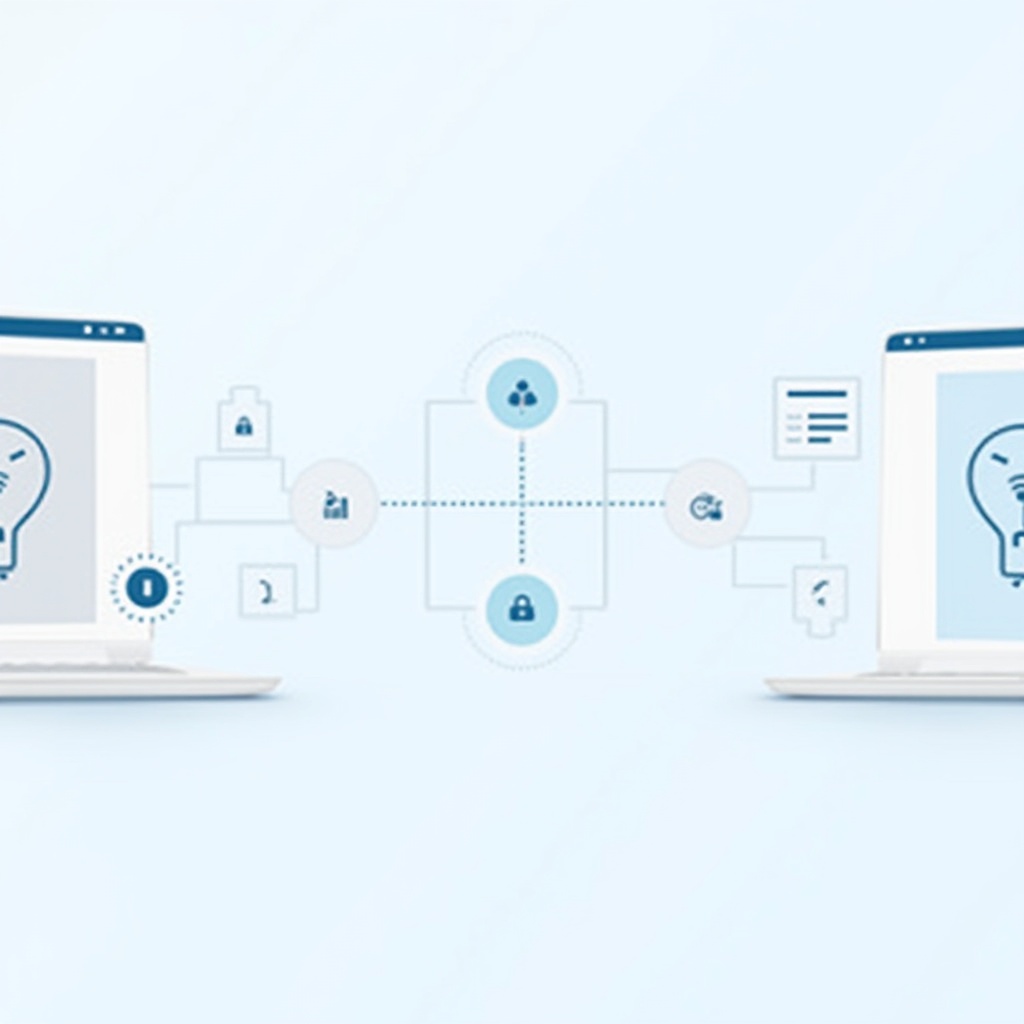
A bidirectional sync is the gold standard. Appointments flow in both directions: a Doctolib booking appears in your clinic software, and an internal booking blocks the matching slot on Doctolib. Cancellations and reschedules are also mirrored. This is what NextMotion's Agenda module provides natively, with real-time updates and no third-party middleware required.
Embedded widget vs API integration
Some platforms embed the Doctolib booking widget on their interface, which is essentially a link to the Doctolib website. This is not a true integration. A proper API-level connection synchronizes data between systems in real time, keeping calendars, patient records, and availability aligned automatically.
Step-by-Step: Setting Up Your Doctolib Integration
Connecting Doctolib to NextMotion takes roughly 30 to 60 minutes. Here is a simplified walkthrough.
Step 1: Check your prerequisites
Before you begin, make sure you have:
- An active Doctolib Pro account with API access enabled.
- A NextMotion account with the calendar: it is included in Scale and available as an add-on from Growth (see pricing); the Doctolib connection comes with it.
- Admin-level access to both platforms.
- Your appointment types already defined in Doctolib (consultations, follow-ups, specific treatments).
Step 2: Connect the accounts
In your NextMotion dashboard, navigate to Settings > Integrations > Doctolib. Click Connect Doctolib, enter your practice identifier, and authorize the connection through the Doctolib OAuth prompt. Once the status shows "Active," the link is established.
Step 3: Map your appointment types
Each Doctolib appointment type needs to match a corresponding type in NextMotion. Go to Appointment Mapping in the integration settings and pair each Doctolib type with its NextMotion equivalent. Set default durations and practitioner assignments. For internal-only appointment types (those not bookable on Doctolib), mark them accordingly so they still block calendar availability on the platform.
Step 4: Test and go live
Create a test appointment on Doctolib and verify it appears in NextMotion within 60 seconds. Then create one in NextMotion and confirm the slot is blocked on Doctolib. Test a cancellation and a reschedule in both directions. Once everything checks out, inform your team that manual entry is no longer needed and monitor the sync for the first week.
Common Pitfalls and How to Avoid Them
Even the best Doctolib integration aesthetic clinic setup can run into issues if you overlook a few common traps. Here is what to watch for.
Staff continue manual entry
The most frequent problem is team members who keep copying Doctolib appointments into the clinic software by habit. This creates duplicate entries that inflate appointment counts and confuse scheduling. Solution: clearly communicate to your entire team that manual entry stops the moment the integration goes live. Run a deduplication check during the first week.
Unmapped appointment types
If you add a new treatment on Doctolib without updating the mapping in NextMotion, those bookings will sync but appear with a generic label or incorrect duration. Solution: make it a standard operating procedure to update the mapping in NextMotion every time you create a new appointment type on Doctolib.
Timezone mismatches
Clinics operating across borders (for example, a group with locations in both Germany and France) may encounter time-shift issues if their Doctolib and NextMotion accounts are set to different timezones. Solution: verify timezone settings on both platforms before activating the integration.
Data conflicts during initial setup
Activating the integration while unreconciled future appointments exist in both systems can cause conflicts. Solution: before going live, export upcoming appointments from both platforms, compare them, and resolve discrepancies manually. Once the sync is active, all future bookings are handled automatically.
Keeping Patient Data Secure and Compliant
Any Doctolib integration aesthetic clinic workflow must respect data protection regulations. The integration transfers only the minimum data required for appointment management: patient name, contact details, appointment type, date, and time. Detailed medical records, clinical photos, and treatment histories remain exclusively in NextMotion's HDS-certified (Health Data Hosting) environment.
All data transfers between Doctolib and NextMotion are encrypted in transit and at rest. Patients are informed of data sharing through Doctolib's consent mechanisms. For a deeper dive into how aesthetic clinics should handle patient information, read our guide on GDPR compliance for patient data.
Ready to Connect Doctolib to Your Clinic Software?
A well-configured Doctolib integration is one of the highest-impact, lowest-effort improvements you can make to your clinic's daily operations. With NextMotion, the setup takes under an hour, requires no technical expertise, and delivers value from the very first synced appointment.
If your team is still managing Doctolib bookings manually, copying appointments, checking for conflicts, and risking double entries, it is time to automate. You will reclaim hours each week, give patients a smoother booking experience, and run your practice with the efficiency a modern aesthetic clinic demands.
Want to see the integration in action? Request a free demo and let our team walk you through the setup. Already using NextMotion? Head to Settings > Integrations to activate your Doctolib connection today.